
0
My Cart0,00 €
No products in the cart.

Instructions for Setting Up WindSim ControlBox in SimHub Software. Applies for SimHub version 9.4.7. The layout may slightly change over time with newer updates, but the setup flow remains the same.
To fully enjoy your WindSim experience with SimHub, follow these instructions and configure the Arduino, ShakeIt Wind output and recommended wind profile step by step.

Do not overwrite the pre-installed firmware; WindSim ControlBox can stop working if you do so.
Do not open the WindSim ControlBox, as this will void your warranty.
And please, don’t throw WindSim ControlBox out the window if you miss out on the podium.
Download and install SimHub on your computer. This software controls the WindSim functionality within your sim racing setup.
Open SimHub and enable the required features so the WindSim ControlBox can appear in the correct SimHub menus.
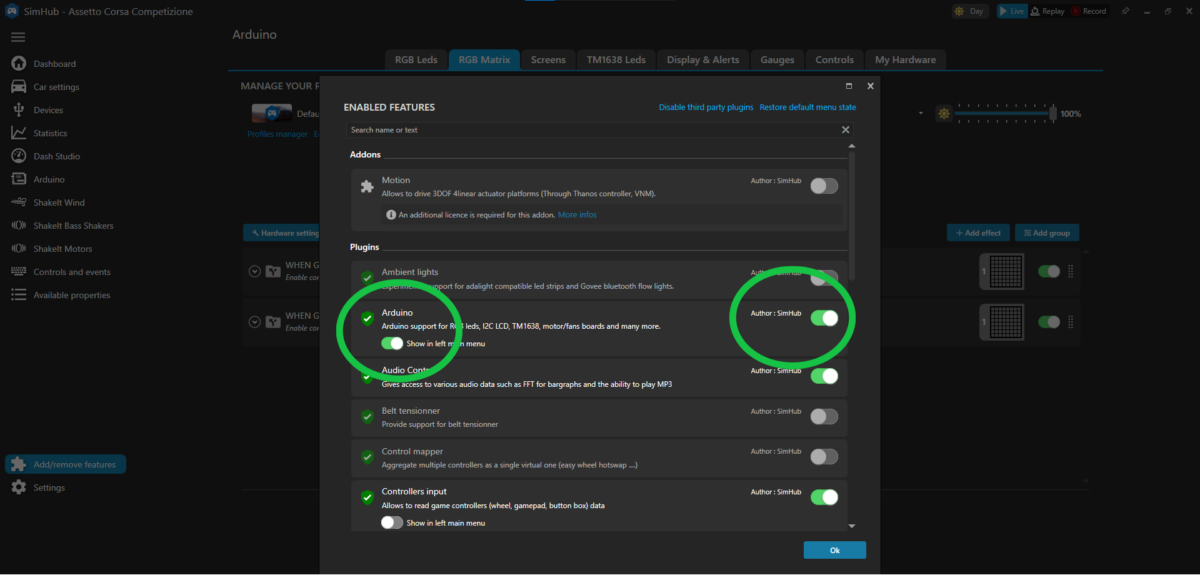
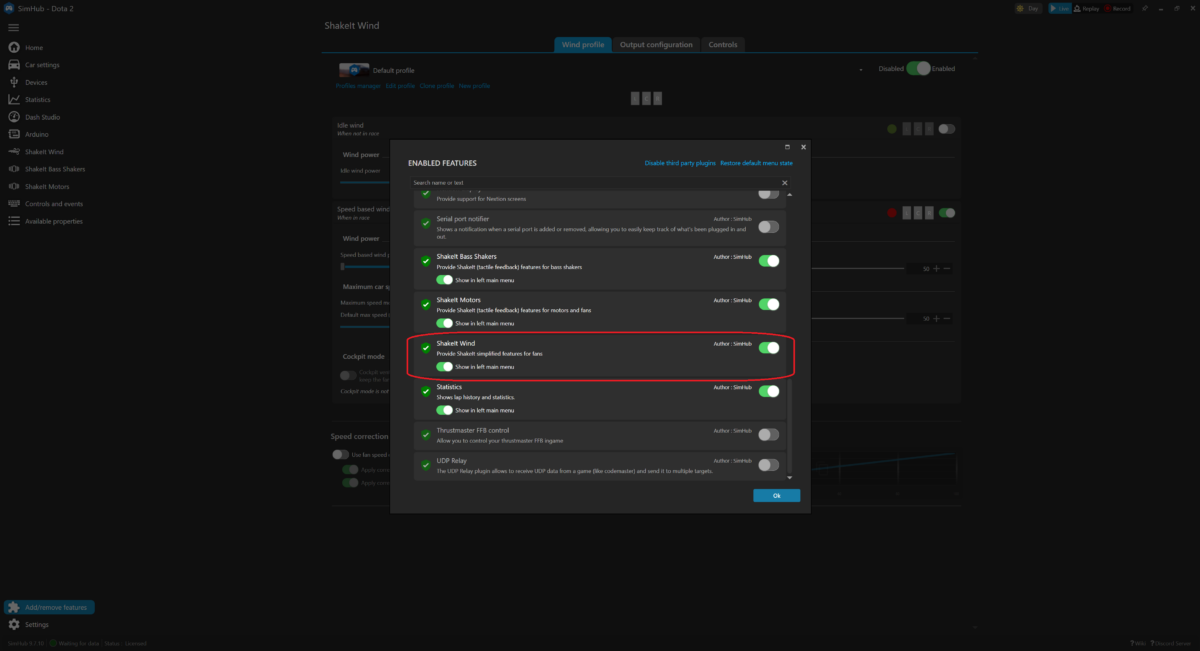
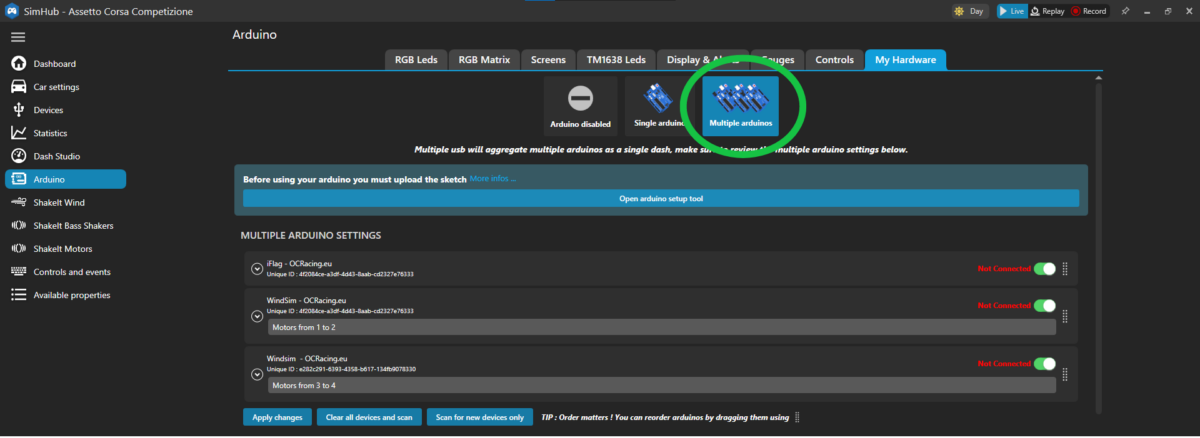
Use the Arduino section in SimHub to select the hardware device and handle driver warnings if they appear.
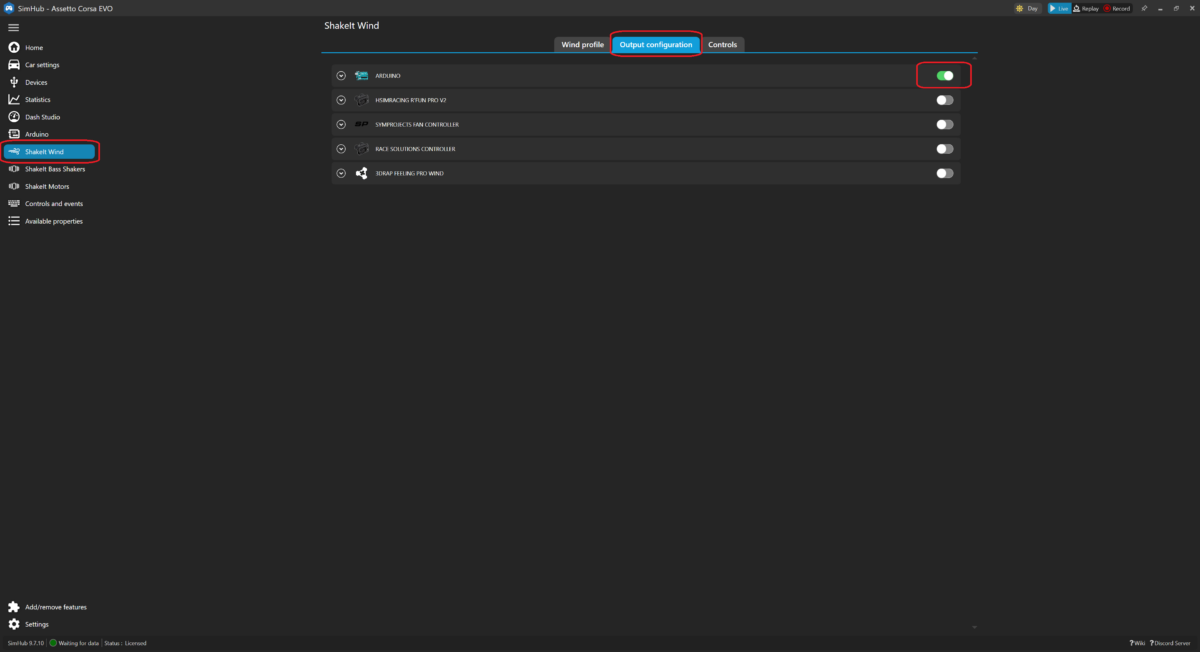
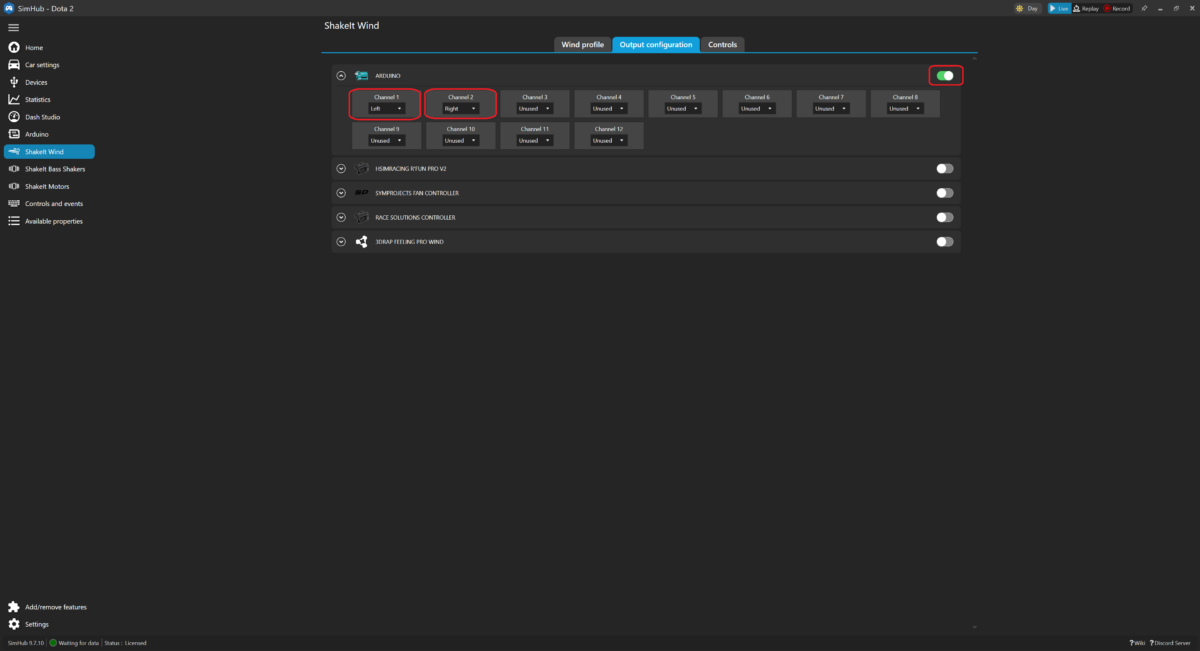
Activate Arduino output in the ShakeIt Wind plugin and assign left/right channels so WindSim responds accurately to in-game events like speed and cornering.
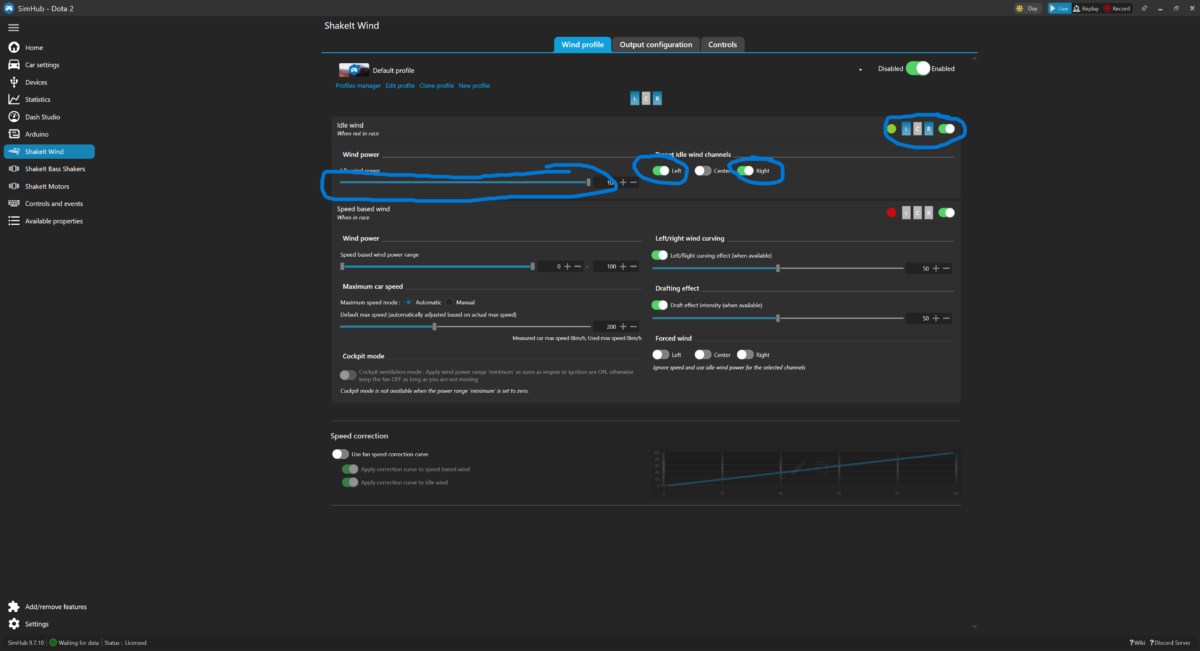
Use Idle Wind to check if the fans and speed regulation are working correctly before you jump into racing.
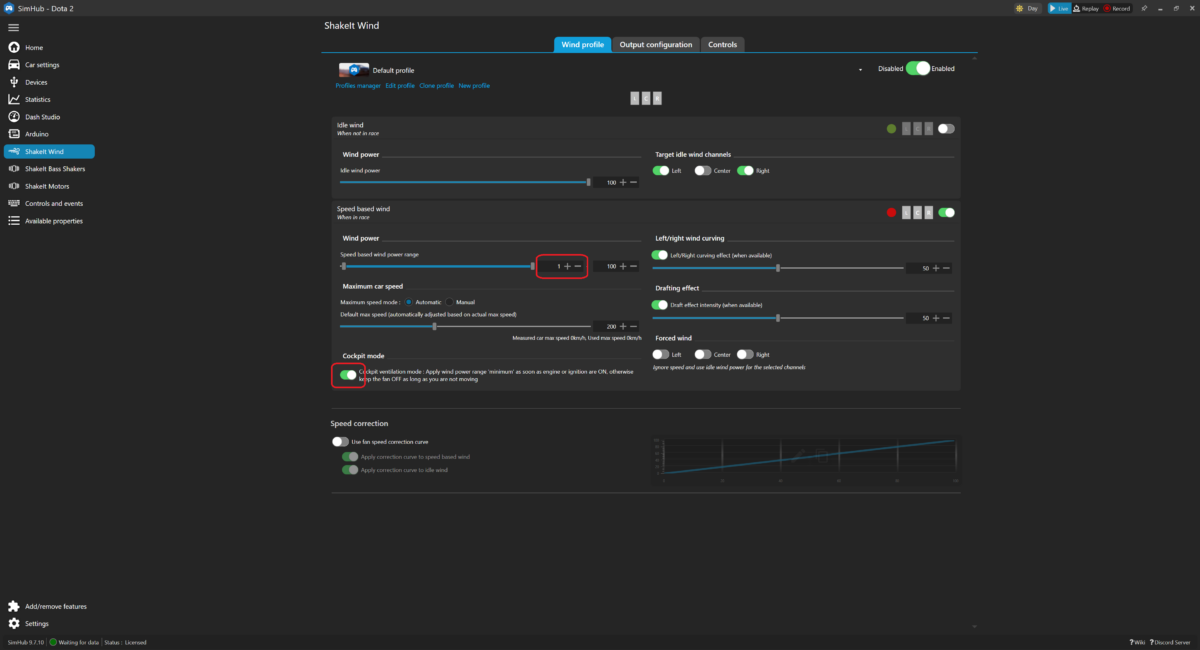
Use these recommended cockpit settings as a strong starting point, then fine tune the profile to your car, simulator and comfort level.
We offer remote support via TeamViewer. Reach out to us to schedule a session for full configuration assistance.
